 Shop now, pay later in 4 easy installments

Printing photos at home can be incredibly rewarding. With a good printer and quality photo paper, it’s possible to achieve beautiful, vibrant prints without leaving your home.
However, one of the most common frustrations people experience is that their printed photos look dull, flat, or washed out compared to the image on their screen.
If you’ve ever printed a photo and thought, “this doesn’t look nearly as vibrant as it did on my phone or computer”, you’re not alone.
If your printed photos look dull, faded, or less vibrant than they appear on your screen, the issue is often related to image resolution, printer settings, paper type, or ink performance.
The good news is that this issue is usually caused by a few simple factors, and most of them are easy to fix.
Below are seven of the most common reasons photo prints look dull, and what you can do to improve your print quality.
1. The original image resolution is too low
One of the biggest causes of dull or soft prints is low-resolution images.
Images that look fine on a phone screen may not have enough detail to print clearly. When printed, low-resolution photos can appear:
- blurry
- lacking detail
- slightly pixelated
- flat or washed out
This happens because screens display images at a lower resolution than printers require.
How to fix it
Use high-resolution images whenever possible.
Helpful tips:
- Aim for 300 DPI (dots per inch) for printing.
- Download the original file, not a compressed version.
- Avoid using screenshots or images saved from social media.
- If sending images from a phone, choose “send original quality” instead of compressed versions.
- Check the image size - larger files usually contain more detail.
If an image looks slightly dull, you can also improve it by:
- increasing contrast slightly
- adjusting brightness
- adding a small amount of sharpening before printing
These small adjustments can dramatically improve the final result.
2. Incorrect printer settings
One of the most common reasons for dull prints is incorrect printer settings.
Many people don’t realise that printer settings control how much ink is applied to the page and how colours are reproduced.
If your printer is set to Plain Paper, it will apply much less ink than is needed for photo printing. This often results in prints that appear:
- faded
- flat
- less vibrant
- lacking colour depth
Even if you are using high-quality photo paper, the printer may not produce the best results unless the correct settings are selected.
How to fix it
Before printing, always check your printer settings.
Recommended settings usually include:
- Paper Type: Glossy Photo Paper, Photo Paper, Semi-Gloss, or whatever the paper type you are using
- Print Quality: High or Best
- Colour Mode: Colour (not grayscale)
Additional tips:
- Disable draft mode, which reduces ink usage
- Ensure the latest printer driver is installed and disable 'Air Print'
- Turn on photo enhancement settings if your printer has them
- Print through the printer driver instead of quick print options, which may limit quality settings.
Selecting the correct paper type allows the printer to:
- apply the correct amount of ink
- optimise colour reproduction
- improve detail and sharpness
As an example, simply switching from Plain Paper to Glossy Photo Paper can improve the vibrancy and quality of your prints.
3. The photo paper quality matters
Photo paper plays a huge role in how vibrant your prints appear.
Lower-quality papers may have thin or inconsistent coatings, which affects how ink is absorbed. This can cause prints to look:
- dull
- uneven in colour
- less sharp
- slightly blotchy
High-quality photo paper is designed with specialised coatings that absorb ink evenly and produce more accurate colours.
How to fix it
Choose photo paper designed specifically for inkjet photo printing (rather than paper intended for laser printers).
Things to look for include:
- consistent coating
- bright white base colour
- good ink absorption
- smooth surface finish
You may also want to experiment with different finishes.
For example:
- Glossy photo paper creates vibrant colours and sharp detail
- Satin or semi-gloss paper reduces glare and provides a softer professional finish
- Heavier paper weights (higher GSM) can produce a more premium feel and better colour depth
Testing different papers with your printer can help you find the combination that produces the best results.
4. Printing on the wrong side of the paper
Some photo papers have only one printable side, while others may have coatings on both sides.
Printing on the incorrect side can prevent the ink from absorbing properly. When this happens, prints may appear:
- faded
- dull
- slightly smeared
- patchy or uneven
This occurs because the inkjet coating is designed to absorb and hold ink, allowing colours to appear vibrant and sharp. If the ink lands on the uncoated side of the paper, it may sit on the surface instead of absorbing properly.
How to fix it
Before loading paper into your printer, make sure you identify the correct printable side.
The printable side is usually:
- brighter white
- smoother to the touch
- glossier or slightly more reflective
If you're unsure which side is the printable surface, you can try a few simple checks:
- Light touch test – gently feel both sides of the paper. The coated side usually feels smoother.
- Wet finger test – lightly dampen your finger and touch a corner of the page. The coated side will feel slightly tacky or sticky.
- Print a small test image – a quick test print can help confirm the correct orientation.
Once you identify the correct printable side and load the paper consistently, achieving reliable, vibrant print results becomes much easier.
5. Screen vs print colour differences
Screens display images using light, while printers reproduce images using ink on paper.
Because of this difference, printed photos can sometimes appear:
- darker
- less vibrant
- slightly warmer or cooler in tone
- This difference is normal because screens often display colours brighter than printed materials.
How to fix it
You can improve colour accuracy by:
- slightly increasing brightness before printing
- printing a small test photo first
- adjusting contrast and colour levels
Other helpful tips include:
- avoiding editing photos on very bright screens
- reducing screen brightness slightly when preparing images for printing
- using consistent lighting when evaluating prints
Professional photographers often make small adjustments to brightness, contrast, or colour before printing, which can make a noticeable difference in the final print.
6. Printer ink levels or maintenance
If your printer is running low on ink or the print heads require cleaning, colours may appear:
- faded
- streaky
- uneven
- dull
This occurs because the printer cannot apply the correct amount of ink to the paper. When ink flow is inconsistent, prints may lose colour depth and sharpness.
How to fix it
Regular printer maintenance helps maintain consistent print quality and reduces the risk of clogged print heads.
Try the following steps:
- check ink levels regularly
- perform a nozzle check to identify blocked nozzles
- run a print head cleaning cycle if necessary
- perform another nozzle check to confirm improvement
- align the print heads if needed
A nozzle check uses very little ink and helps determine whether cleaning is actually required.
If you print photos regularly, occasional maintenance can help ensure consistent colour reproduction and sharper print results.
7. Incorrect colour management settings
Colour management settings control how colours are interpreted between your image, software, printer, and photo paper.
If colour management settings are incorrect, prints may appear:
- dull
- faded
- overly dark
- slightly inaccurate in colour
This can happen when both the software and the printer attempt to manage colour at the same time, or when the wrong colour profile is selected.
How to fix it
To achieve more accurate colour reproduction, it’s important to ensure that colour management settings are configured correctly.
Helpful steps include:
- allow either the printer or the software to manage colours, but not both
- ensure the correct paper type setting is selected in the printer driver
- check that colour printing is enabled (not grayscale)
- if available, use ICC colour profiles designed for your photo paper
Many home users achieve excellent results simply by allowing the printer to manage colours automatically, while ensuring the correct photo paper type is selected.
If you are using photo editing software, experimenting with colour management settings can help you achieve more accurate and consistent print results.
Final thoughts
Dull photo prints are usually caused by a few simple factors, and in most cases they’re easy to correct.
You can achieve vibrant, high-quality photo prints by ensuring you have:
- high-resolution images
- correct printer settings
- quality photo paper
- proper paper orientation
- well-maintained printer equipment
- proper colour management settings
Even small adjustments to your printing process can make a significant difference.
Looking for high quality photo paper?
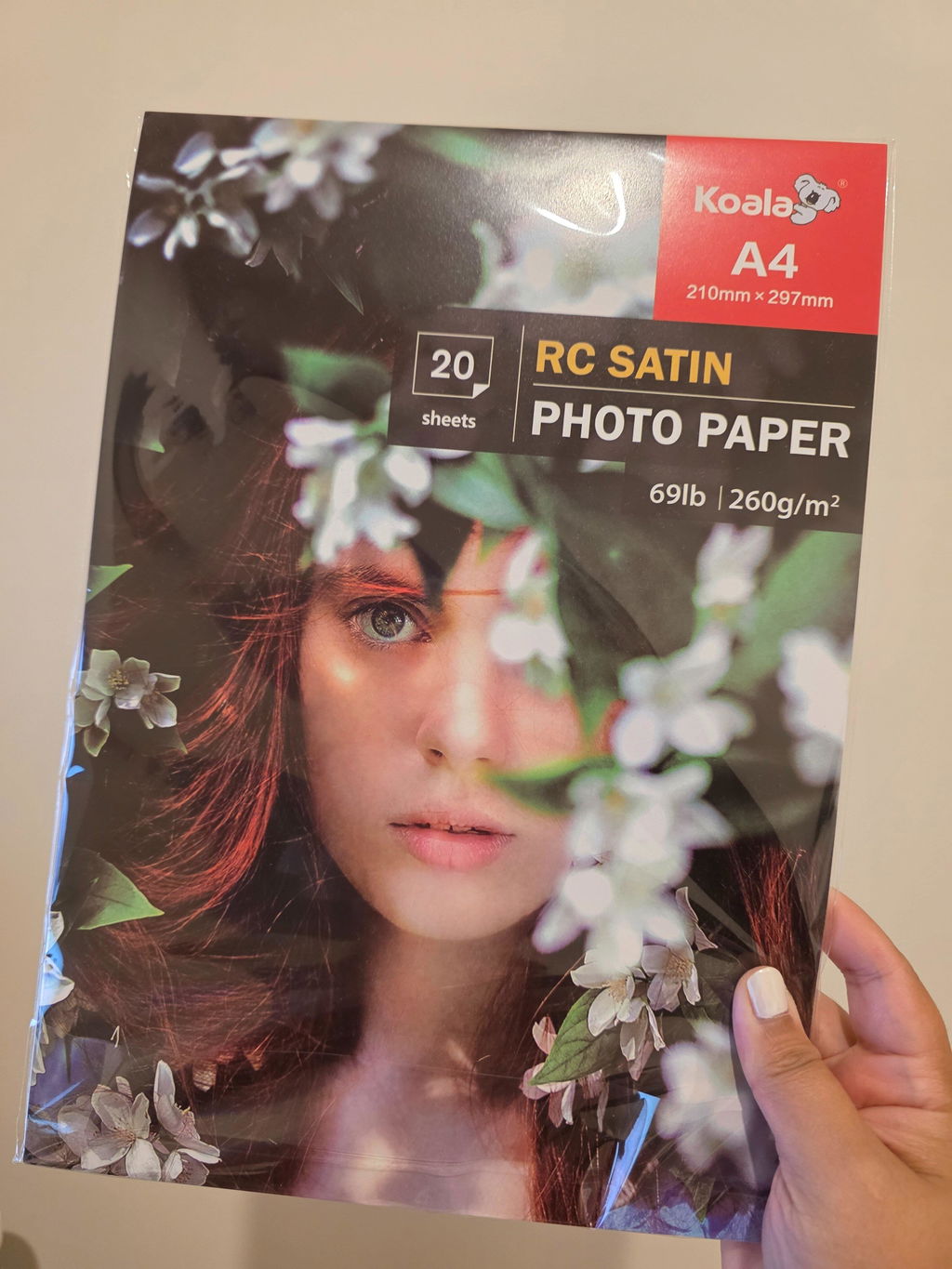
If you're looking for reliable photo paper designed for beautiful colour reproduction and consistent printing, explore the Koala Photo Paper range available at Create Print Love.
Our photo paper range includes:
- Koala 115gsm glossy photo paper
- Koala 120gsm double-sided glossy photo paper
- Koala 260gsm satin photo paper